How to Edit Inside a Group or Part
Estimated reading time: 3 minutes
A placed footprint is a group: its pads, outline and label move as one, which is what you want almost all the time. Sometimes you need to change one thing inside it: move a pad that doesn't match your real part, make one hole bigger, or add a mounting hole to a group of your own. You don't have to ungroup it for that. Open it, change what you need, and leave.
Open a group
Any of these opens it:
- Double-tap it (a double-click with a mouse). The view zooms in on it, too.
- Right-click it, or long-press it on a touch screen, and choose Edit group contents.
- Select it and press Edit group contents in its panel.
Everything outside the group fades, the group gets a thin outline, and a chip at the bottom of the screen says what is open: Editing LED_THT_5mm. The name is the part's designator, or the library part's name, or Group.
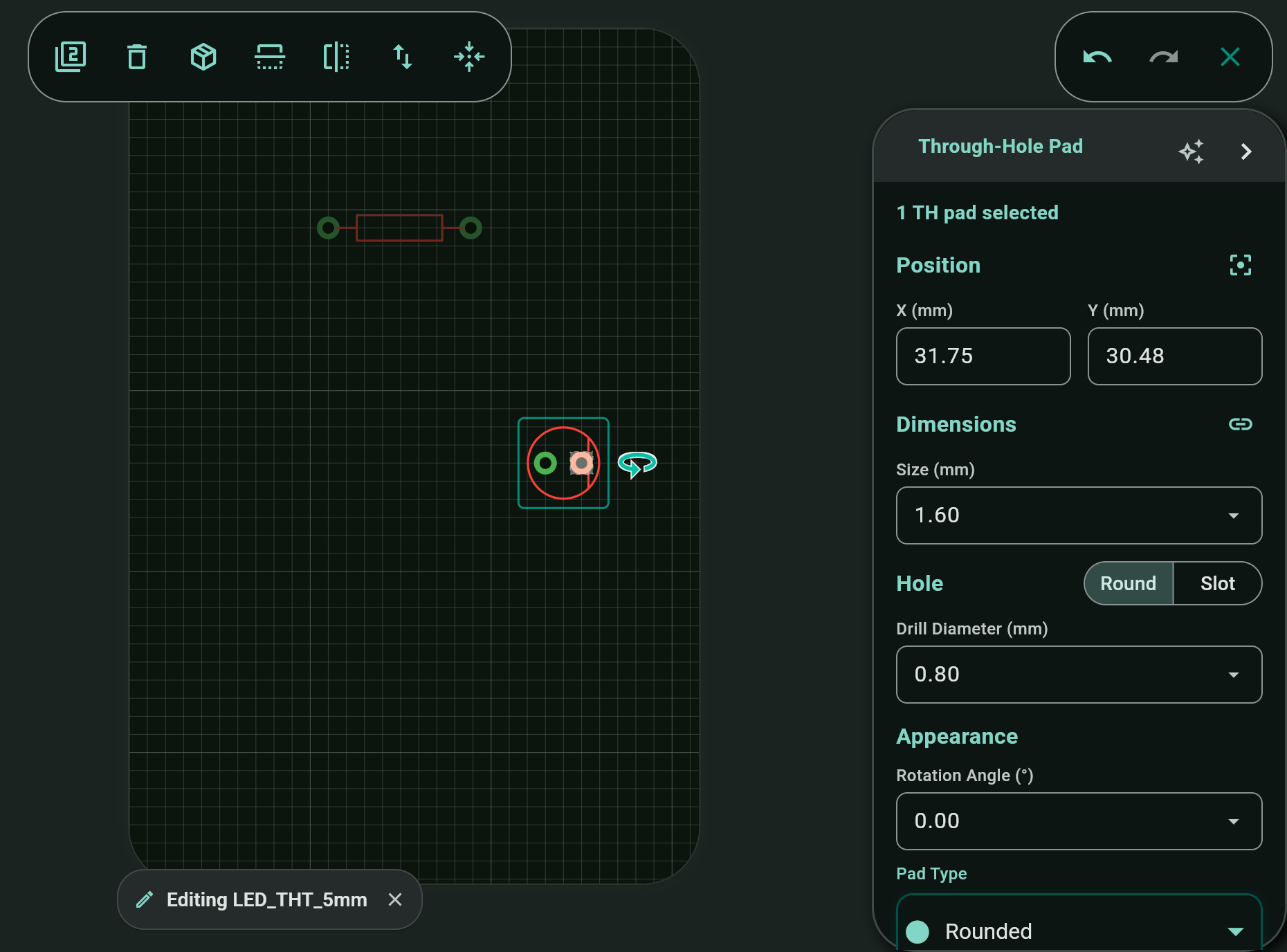
Edit what is inside
Inside the group, a tap picks the group's own items: a pad, a line of the outline, a label, or a group inside it. Box and lasso selection, and Ctrl+A, pick inside the open group only.
Everything works on what you pick: move, rotate, mirror, flip, snap to grid, delete, and each item's panel (a pad's size, its hole, its shape). So do Duplicate, Array duplicate, Group, Ungroup and Create Footprint.
The pad, SMD pad, Machining (drill and milling), circle, text and footprint tools place into the open group: pick one, place, and what you place belongs to the group. The chip stays up to say where it goes.
A group inside the group opens the same way, with another double-tap. The chip then shows both (Editing Group / U1) and gains Up one level.
Move items in and out
- Move out of group (right-click or long-press, inside an open group): the selected items go one level up, into the group around it or onto the board.
- Add to group (on the board or inside an open group): select one group and the items that should join it, and they become part of it.
Leave
- Press × on the chip to close every open group, or Up one level to close just the innermost one.
Escclears the selection first; the nextEscleaves one level.- Double-tap an empty spot of the board, or tap something faded outside the group: you leave, and in the second case that thing is selected.
- Picking a tool that doesn't place into a group, such as Track or the ruler, leaves every level.
After you leave, the group you were in is selected, so the next drag moves it as a whole.
A footprint you changed still remembers which library part it was placed from. The change is on this board only; the library stays as it was. To reuse your version, select it and press Create Footprint (How to Create Your Own Footprints).