How to Find and Place Footprints
Estimated reading time: 4 minutes
A footprint is the copper pads and silkscreen outline of a real part: the land a resistor, a chip or a connector is soldered to. Protoboard Designer comes with a library of more than 6,000 of them, kept on your device so it works offline. This page shows how to find the one you need and put it on the board.
Open the Footprints tool on the left toolbar, or press F.
The panel
The panel opens on three shelves, each of which folds away to one line:
- Recently used: the parts you placed last, newest first.
- My footprints: the ones you made yourself (How to Create Your Own Footprints).
- Library: every part, in folders by kind (Capacitors, Connectors, Diodes, LEDs…) and then by package.
Star a part (☆ at the end of its row) and it appears under Favorites. The line at the foot of the panel says how many parts the library holds and whether it is up to date; press it to check for a newer library.
On a phone or tablet the library opens a folder at a time, as pages, with the way back at the top.
Search
Type in Search footprints…. Results come ranked, best first, not A–Z: a part whose name matches comes before one that only mentions the word. Above them a line counts what was found (103 matches · 9 folders · best first), and matching folders come first, so axial offers Resistors › Axial (THT) as a folder before single parts.
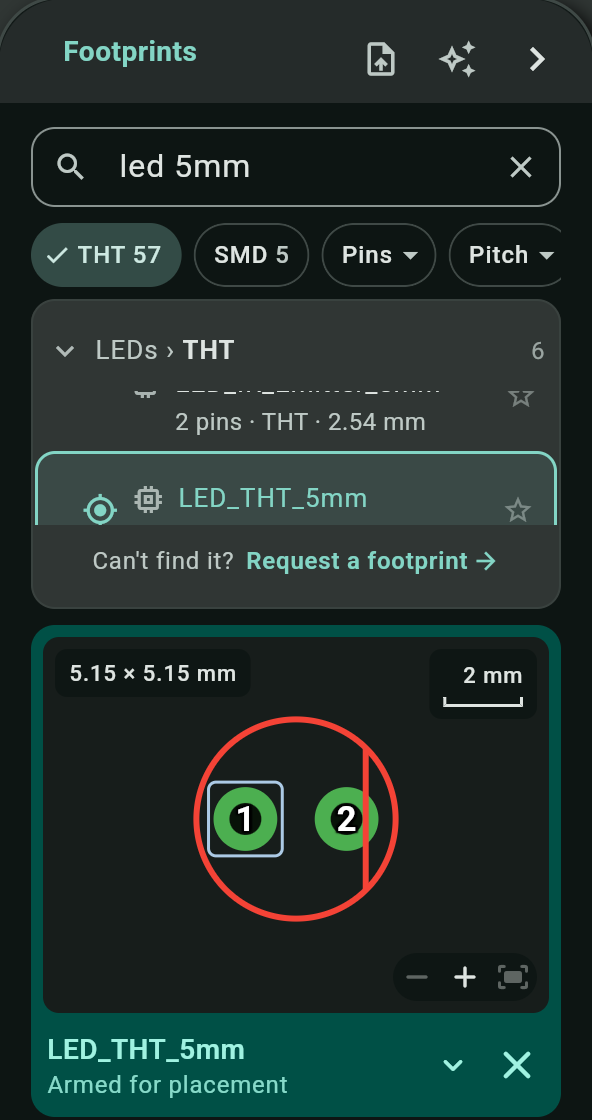
Search knows the usual spellings: a KiCad name (LED_THT_5mm, R_Axial_10.0mm), a package (DIP-8, SOT-23, 0805) or a part number (NE555, ATmega328P).
Narrow it down
When a search finds more than a couple of dozen parts, filter chips appear under the search box:
- THT / SMD: through-hole or surface-mount. Each chip counts its parts.
- Pins: how many pins.
- Pitch: the spacing between pins (2.54 mm, 1.27 mm…).
Preview and place
- Press a part. It is now armed, and a bar at the foot of the panel shows its name and Armed for placement.
- Open the bar (˄) to see the part drawn at true proportions, with its size, a scale bar and its pin numbers. Pin 1 is marked with a box. Zoom the drawing with + and −.
- Click or tap the board where the part should go. It lands there, snapped to the grid.
- The part stays armed, so you can place another and another. Press
Esc, or the × on the bar, to stop.
On a phone, the bar has a Place button: it folds the panel away so you can see the board, then tap where the part goes.
With a group or a part open for editing (How to Edit Inside a Group or Part), a footprint you place goes into that group.
Can't find it?
- Try the package instead of the part (TO-220, not the regulator's name), or fewer words.
- Import it: the Import button at the top of the panel brings in a KiCad, Eagle or Sprint-Layout footprint, or a whole library from GitHub (How to Import KiCad Footprints). Importing needs the Maker or Engineer plan.
- Draw it yourself with pads and silkscreen, then save it with Create Footprint (How to Create Your Own Footprints).
- Ask for it: Can't find it? Request a footprint at the foot of the results opens a short form: what you are looking for, a part number or datasheet link if you have one, and Notify me when it's added. New parts reach the library without an app update.