How to See Your Board in 3D
Estimated reading time: 4 minutes
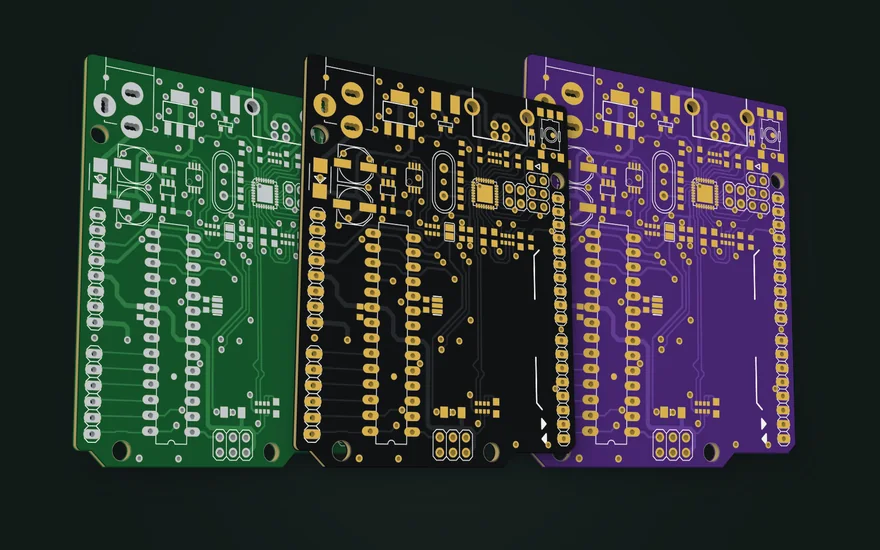
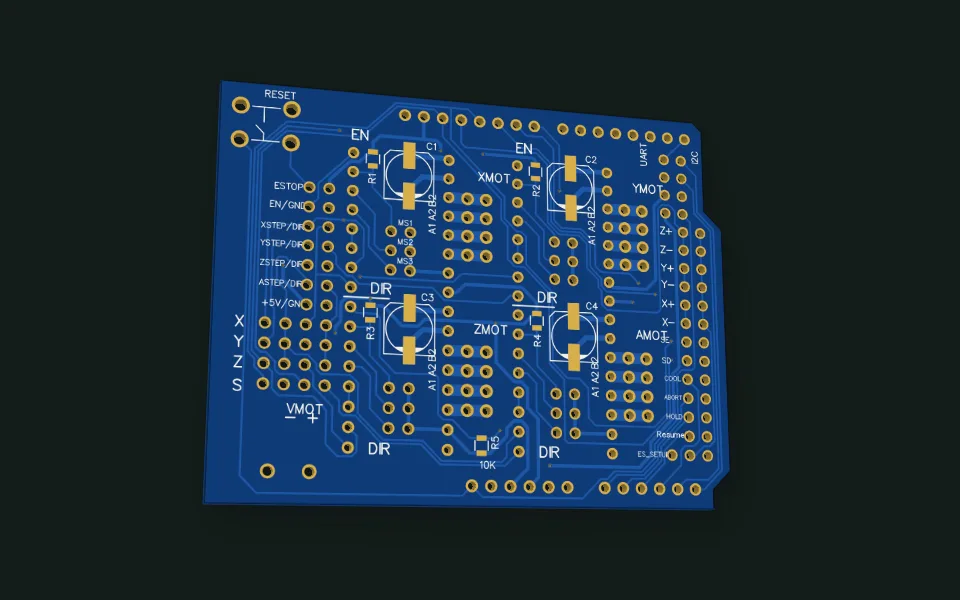
The editor draws copper as coloured shapes on a grid. The 3D view draws the bare board as it comes back from the fab: the mask, the silkscreen, the finish on the pads, the holes and the outline. It is the quickest way to catch a pad the mask covers or silkscreen that reads backwards, before you pay. It's free on every plan.
Open it
- In the editor: Tools (the ruler button on the left toolbar) → 3D view.
- From the Gerber export: Preview.
- From the project list: the board's menu.
Look around
- Drag to turn the board; pinch or scroll to zoom. Reset view puts it back.
- Turn over shows the bottom.
- Turn slowly sets it spinning; Stop turning stops it.
- X-ray shows the other side's copper through the board: check that tracks meet at the vias.
Pick what you'll order
Under Colors and finish, choose what you'll pick on the fab's order form:
- Solder mask: green, purple, red, yellow, blue, white or black.
- Silkscreen: white or black, or Auto, which picks the one that reads on your mask.
- Surface finish: HASL (silvery solder), ENIG (gold) or OSP (bare copper under a clear coat).
The choices are saved with the board. Gerber files don't carry them, so pick the same ones again when you order. On a black or white mask, JLCPCB needs a wider strip of mask between pads than on the other colours; if the board's narrowest strip is below that, the 3D view says so and offers to set it (How to Check the Solder Mask).
What to check before you order
The 3D view is drawn from the same copper and mask openings as the Gerber export, so what you see is what the files say.
- Every pad you'll solder is bare. A pad the mask covers shows in the mask's colour, and you can't solder to it.
- Vias are the way you meant them: tented under the mask, or bare rings.
- The silkscreen reads right on both sides and doesn't run over pads.
- The outline is the shape you want, with its cut-outs and holes.
It shows the bare board, not the parts on it: whether a tall capacitor clears a case lid is still a job for a ruler. Then run the design rule check, which measures what the eye can't.
Export a picture
Export makes a PNG of the board as you see it, on a clear background, for a README, a shop page or a slide. Turn the board the way you want it first. On the free plan a small Protoboard Designer logo sits under the board; Maker and Engineer can turn it off.
Showcase
At a maker fair or a club evening, Showcase puts the board alone on the screen, turning on its own. In Showcase settings choose:
- the Board name and a Second line (your name, your booth or a short note),
- the Motion (Full turn or Sway) and Speed,
- the Background (dark, light or black),
- Full screen, and a QR code that opens the board on a visitor's phone.
The QR code needs the board to be public (How to Share a Board). A public board's showcase also has its own link (Link to this showcase), which any screen can open, such as a TV's browser, with no account.