How to Import an Eagle Board (.brd)
Estimated reading time: 4 minutes
Autodesk retired Eagle, but your boards don't have to retire with it. Protoboard Designer opens Eagle .brd board files (the XML format used by Eagle 6 and later) as full projects — the layout you built in Eagle comes across so you can keep editing it, run DRC, and export fresh Gerbers whenever you need another batch.
Opening .brd files as new projects is free — the only limit for free users is the number of cloud boards.
Import a .brd board
- Sign in, then open your project list.
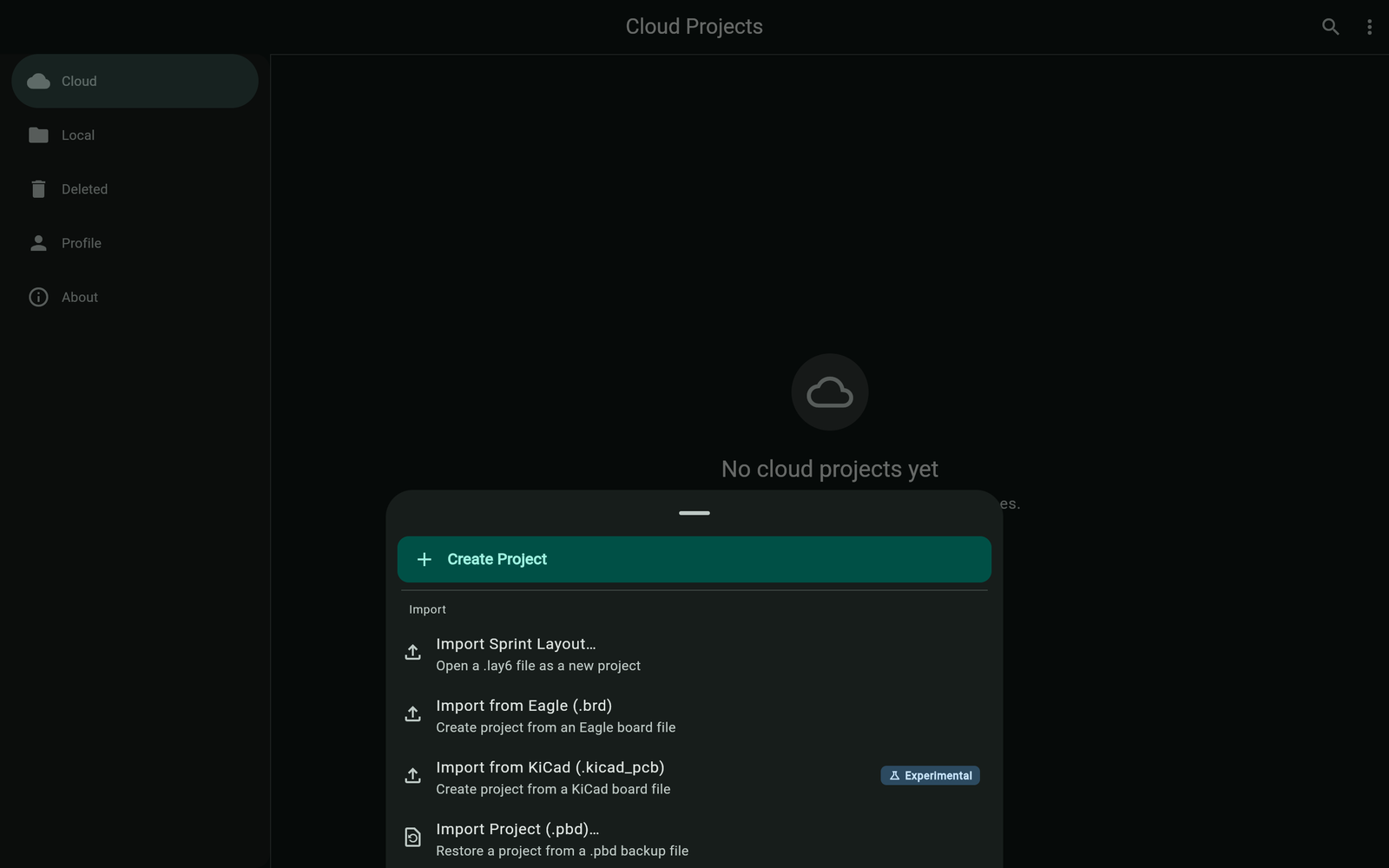
- Open the Create project menu and choose Import from Eagle (.brd).
- Pick the
.brdfile from your device. (On the web, very large files ask for a quick confirmation first.) - A progress dialog appears while the file is parsed and converted.
- The board opens in the editor as a new project.
What comes across
The importer reads the Eagle XML and converts the board into native Protoboard Designer elements — component pads (with drills and rotations), traces, and board geometry — placed exactly where Eagle had them. After import it behaves like any board you drew here: everything is editable, and AutoGround, DRC, and all exporters work on it.
Eagle switched to XML .brd files in version 6 (2011). Boards saved by older Eagle versions use a binary format the importer can't read — open them once in a newer Eagle (or Fusion 360) and re-save to convert.
After the import
- Give the board a quick visual pass — Eagle and Protoboard Designer model a few advanced features differently, so spot-check anything exotic (odd pad shapes, polygons with special settings).
- Run the Design Rule Check before you order anything.
- Set your board size expectations in Board Settings if you plan to reshape it — see Define Your Board Shape.
Troubleshooting
The file won't parse
Confirm it's a board file (.brd), not a schematic (.sch) or library (.lbr), and that it comes from Eagle 6 or newer (XML). Very old binary files need one round-trip through a newer Eagle first.
Parts are there but a detail looks off
The importer maps Eagle's model onto native elements, and a few rarely-used options don't have a one-to-one equivalent. Fix the detail in the editor — everything imported is fully editable — and contact us with the file if something converts wrong, so we can improve the importer.