How to Import a Sprint Layout Project (.lay6)
Estimated reading time: 5 minutes
Sprint Layout is a much-loved Windows-only layout tool — and Protoboard Designer opens its files directly. A .lay6 project imports as a full Protoboard Designer project: boards, traces, pads, wiring, and text come across, so you can keep working on your existing designs in the browser or on Android, and export them as Gerbers or PDF masks.
Opening .lay6 files as new projects is free — the only limit for free users is the number of cloud boards. Importing .lmk macros into your reusable library is part of the Maker plan.
Import a .lay6 project
- Sign in, then open your project list.
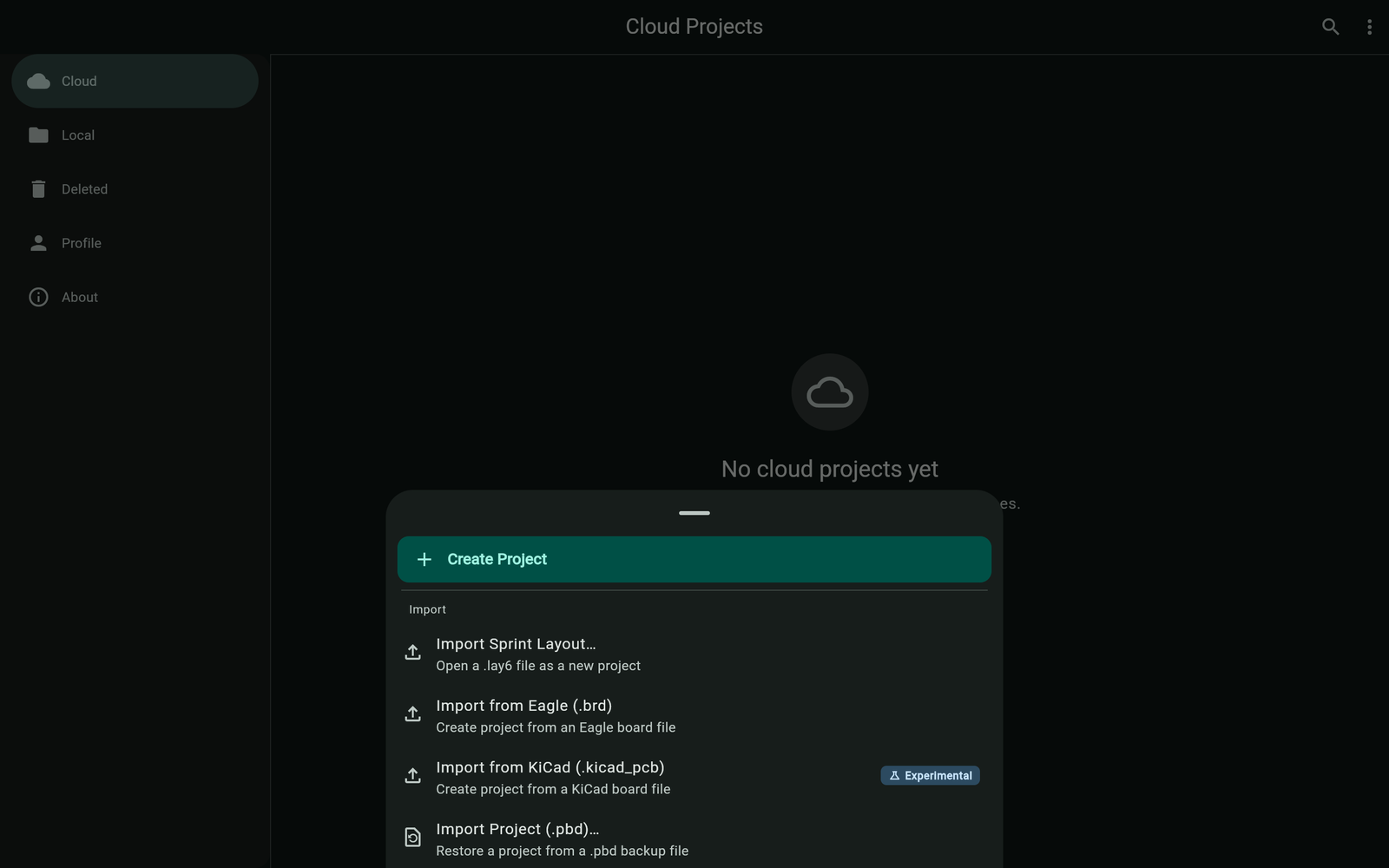
- Open the Create project menu and choose Import Sprint Layout….
- Pick the
.lay6file from your device. - A progress dialog shows the phases of the import; large files take a moment.
- The project opens in the editor as a new board — ready to edit, route, and export.
Files with more than one board
Sprint Layout files can hold several boards in one file. If yours does, Protoboard Designer shows a Choose boards to import picker:
- Each board is listed with its size and element count, so you can tell them apart.
- The board that was active when the file was saved is marked with a badge.
- Pick the board(s) you want — each becomes its own project.

What comes across
The importer converts Sprint Layout objects into native Protoboard Designer elements: pads (with drills), tracks, zones, text, and the board outline. Text is converted with matching fonts where possible, and coordinates, corners, and line thickness are preserved.
Boards with an unusually large number of objects import fine but can be slow to edit; the importer warns you when a file contains very large graphics. Boards with implausible dimensions fall back to sensible defaults, and the import tells you when that happens.
Importing .lmk macros
A .lmk file is a Sprint Layout macro (a reusable footprint), not a project — if you pick one in the project importer, the app points you to the right place: the Sprint library browser inside the footprint tools. There you can browse macro repositories, preview the converted footprint, and Import Macro into your library (Maker plan and up). Once imported, place it like any built-in footprint.

Troubleshooting
"This is a Sprint Layout macro (.lmk)"
You picked a macro file in the project importer. Use the Sprint library browser in the footprint tools instead — projects and macros import through different doors.
The import says the board dimensions are out of range
The file declared an implausible board size, so the importer used safe defaults. Check Board Settings → Board Dimensions after import and set the real size.
Some objects look slightly different
Sprint Layout and Protoboard Designer model a few things differently (fonts and special pad types, for example), so the importer converts to the nearest native element. Give the board a quick visual pass and run DRC before exporting.